
How to Automate Backup File Upload to Google Drive in Flutter
Learn how to implement automatic backup file uploads to Google Drive in a Flutter application using Google Drive API, OAuth authentication, background triggers, offline queue management, retry handling, and Firebase metadata synchronization.
Introduction
Automatic backup is useful for applications that store important user data such as transactions, budgets, wallets, documents, and settings.
Instead of asking the user to manually create and upload a backup, the application can generate the backup automatically and upload it to the user’s Google Drive.
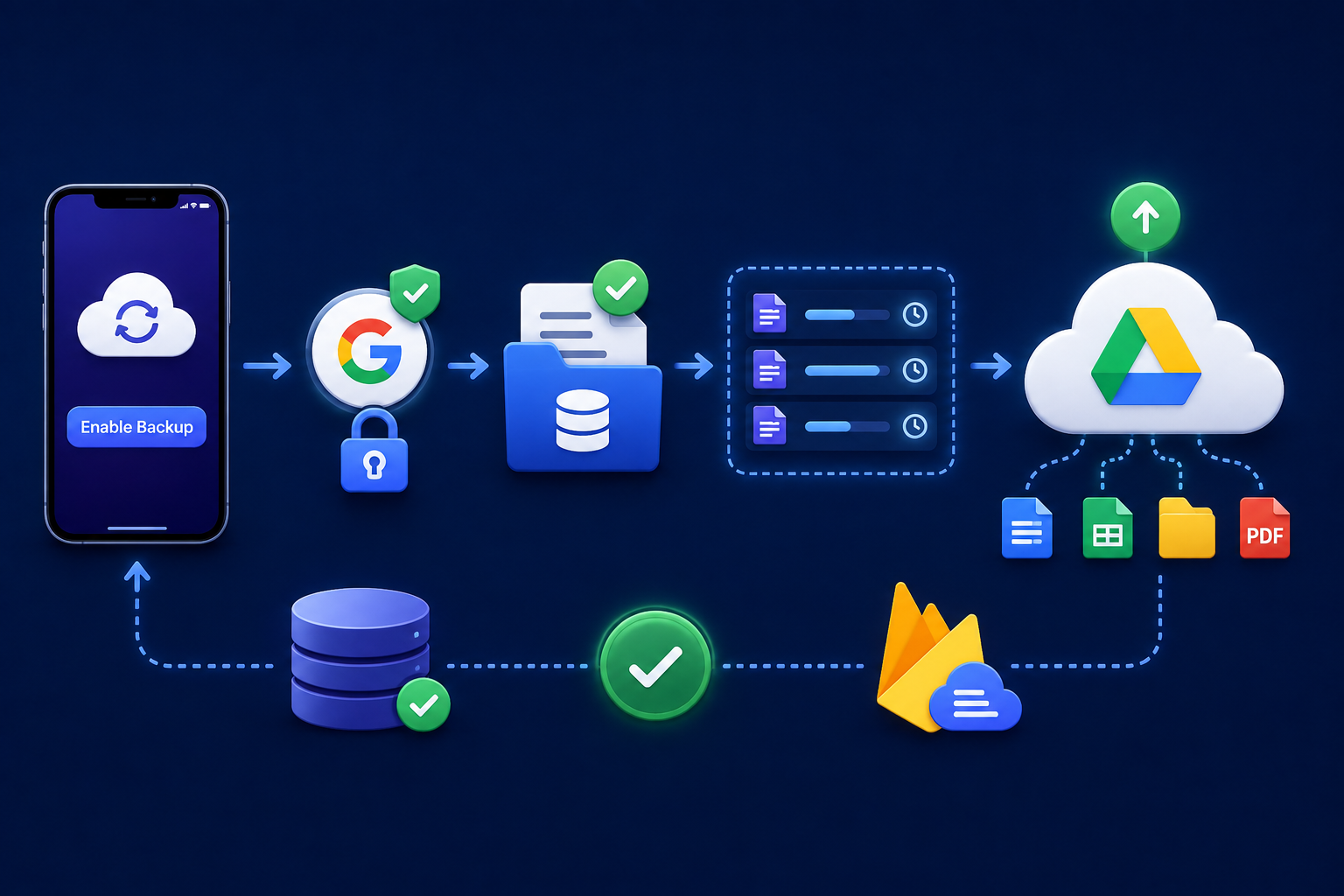
The implementation mainly requires Google authentication, backup generation, background execution, Google Drive API integration, local sync management, retry handling, and restore support.
Firebase is optional and can be used to store backup metadata and synchronization information.
Google Drive Authentication
The application must have permission to access the user’s Google Drive before uploading any backup.
For personal Google Drive backup, OAuth 2.0 should be used. The user grants Drive permission during the initial setup, and the application maintains the authentication state for future backup operations.
Authentication should be checked before every upload because the access token can expire.
“`dart
class GoogleAuthService {
Future isAuthenticated() async {
// Check current Google authentication state.
return true;
}
}
“`
If authentication is no longer valid, the application should refresh or restore the authentication state before starting the upload.
Backup File Generation
The application first needs to collect the required local database data and generate a backup file.
The backup can contain application data such as transactions, budgets, wallets, categories, accounts, and settings.
For structured data, JSON is a suitable backup format.
“`dart
import ‘dart:convert’;
String createBackupJson(Map data) {
return jsonEncode({
‘backupVersion’: 1,
‘createdAt’: DateTime.now().toIso8601String(),
‘data’: data,
});
}
“`
The generated file should be saved locally before uploading it to Google Drive. This ensures that the backup is not lost when the device is offline or an upload fails.
Automatic Backup Trigger
The backup process needs a trigger to determine when a new backup should be created.
A scheduled trigger can run the backup periodically, while an event-based trigger can create a backup after important application data changes.
The trigger should create the backup and add it to the upload process rather than depending on an immediate network connection.
For mobile applications, background execution should use a platform-supported scheduling mechanism because Flutter applications cannot continuously execute background code without platform restrictions.
Local Backup and Upload Queue
The backup file should remain available locally until Google Drive confirms a successful upload.
A local queue can maintain the current state of every backup.
“`text
Pending
Uploading
Synced
Failed
Retrying
“`
When the device is offline, the backup remains in the `Pending` state.
When network connectivity becomes available, pending backups can be processed automatically.
This prevents backup operations from being lost because of temporary network problems.
Google Drive API Upload
The Google Drive API is responsible for uploading the actual backup file.
The upload requires the file information, file data, MIME type, and destination folder.
A dedicated backup folder should be maintained in the user’s Google Drive so that application backups remain organized.
After a successful upload, Google Drive returns a File ID. This ID should be stored locally because it identifies the uploaded backup and can later be used for synchronization or restore operations.
For larger backup files or unreliable networks, resumable uploads should be considered so that an interrupted upload can continue without restarting the complete file.
Duplicate Prevention and Sync Management
Automatic backup can create duplicate files if every upload creates a new Google Drive file.
To avoid this, the application should store the Google Drive File ID along with the local backup information.
“`text
Backup ID
File Name
Drive File ID
Backup Version
Sync Status
Last Sync Time
“`
When an existing backup needs to be updated, the stored Drive File ID can be used to update the existing file instead of creating another copy.
The application should also keep the last successful backup available until the new backup has been successfully uploaded and verified.
Firebase Backup Metadata
Firebase is not required for the actual Google Drive file upload.
Google Drive stores the backup file, while Firebase can store information about that backup.
Firestore can maintain fields such as:
“`text
userId
backupId
fileName
driveFileId
backupVersion
createdAt
syncStatus
“`
This allows the application to maintain remote backup information and identify the latest synchronized backup.
The responsibilities should remain separate:
“`text
Local Database
Backup Queue and Local Sync State
Google Drive
Actual Backup File
Firebase
Backup Metadata
Retry and Restore Handling
Automatic uploads can fail because of network interruptions, temporary API errors, authentication expiration, or rate limits.
Failed uploads should remain in the queue and be retried using controlled retry logic with exponential backoff.
“`text
1 second
2 seconds
4 seconds
8 seconds
“`
A maximum retry count should also be maintained so that the application does not continuously send failed requests.
Restore should validate the downloaded backup before importing it into the local database.
The backup version should be checked first, followed by data validation and database restoration.
“`dart
Future restoreBackup(
Map backup,
) async {
final version = backup[‘backupVersion’];
if (!isSupportedBackupVersion(version)) {
return false;
}
await restoreApplicationData(backup[‘data’]);
return true;
}
“`
The restore process should not remove existing data until the downloaded backup has been validated successfully.
Google Cloud and Flutter Integration
Before using Google Drive API, the Drive API must be enabled in the Google Cloud project used by the application.
Open Google Cloud Console, select the required project, and enable Google Drive API from:
https://console.cloud.google.com/apis/api/drive.googleapis.com/metrics
After enabling the API, configure the required Google authentication credentials for the Flutter application.
The Flutter implementation should keep the backup logic separated into dedicated services:
“`text
BackupService
GoogleAuthService
GoogleDriveService
BackupQueueService
FirebaseBackupService
RestoreService
“`
This separation keeps authentication, file generation, Drive operations, queue management, Firebase metadata, and restore logic independent and easier to maintain.
Conclusion
Automatic Google Drive backup in Flutter should be implemented as a synchronization system rather than a simple file upload.
Google OAuth handles user Drive access, the local database manages backup state, Google Drive stores the actual backup file, and Firebase can maintain backup metadata when required.
The application should generate backups automatically, keep them locally until synchronization succeeds, manage offline uploads through a queue, prevent duplicate files, handle authentication and retry failures, store the Google Drive File ID, and validate backups during restore.
This architecture provides a reliable and maintainable backup system that can run automatically without requiring the user to manually upload every backup file.