Understanding and Fixing Release Build Crashes in Flutter Projects
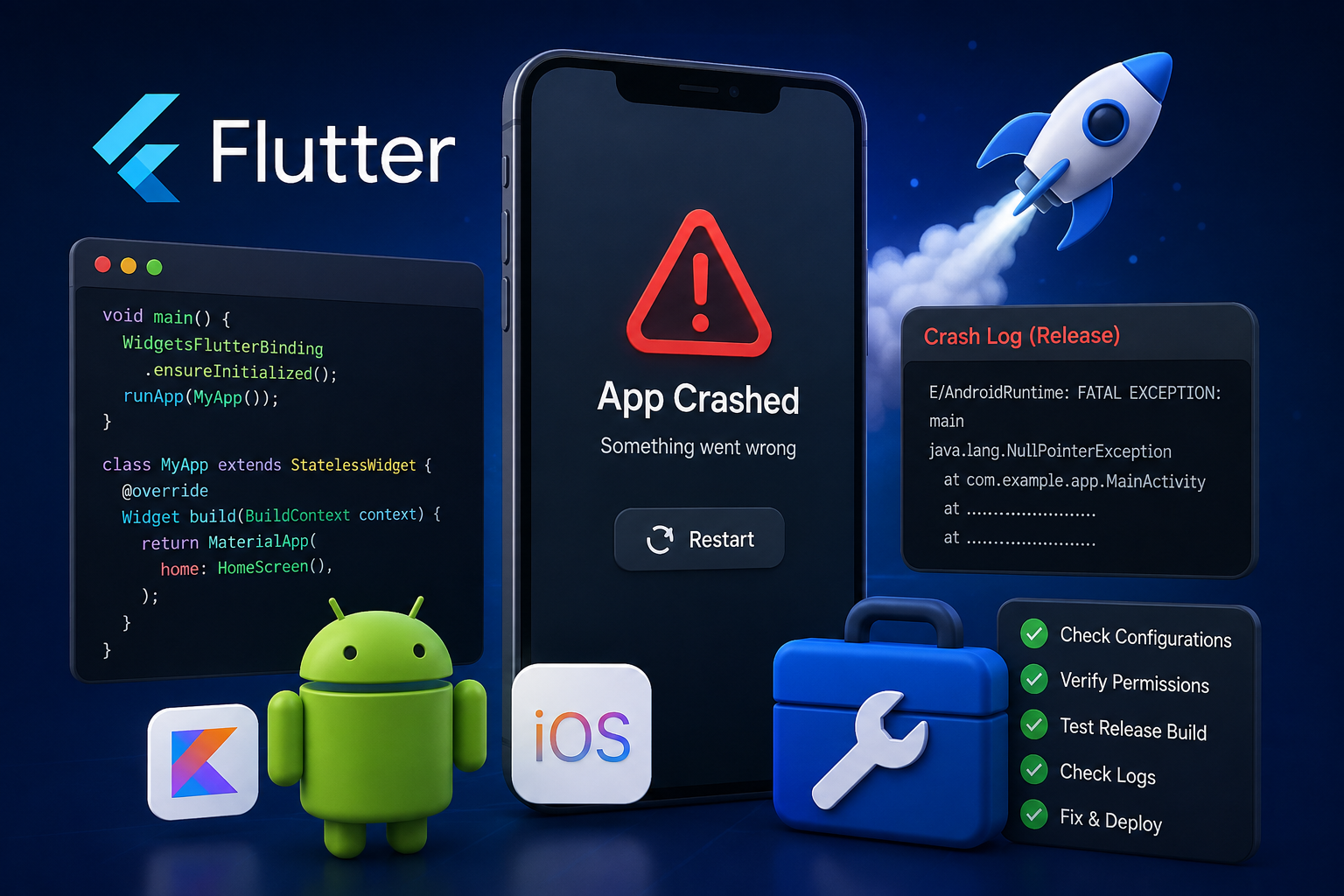
Release build crashes are common Flutter issues caused by incorrect configurations, missing files, API problems, permissions, or release-only errors. Learn the common causes of release crashes and practical ways to identify and fix them before deployment.
Introduction
A Flutter application may work perfectly during development but crash when the release build is installed on a real device. This can be confusing because the same application may run correctly in debug mode without showing any obvious problems.
Debug and release builds use different configurations and optimizations. Release builds disable debugging features, apply code optimizations, and may use different API endpoints, environment settings, permissions, and native configurations.
Because of these differences, some problems only become visible after generating an APK, AAB, or iOS release build.
Release build crashes can be caused by many different factors, including incorrect Android or iOS configuration, missing assets, code shrinking, API failures, environment variables, permissions, native dependencies, or platform-specific issues.
During Flutter development, it is common to focus mainly on whether the application works in debug mode. However, the release build should be treated as a separate testing environment because the production configuration can behave differently from the development configuration.
In this article, we’ll understand the common causes of Flutter release build crashes and the practical techniques developers can use to identify and resolve them efficiently.
Understanding Debug and Release Builds
Flutter provides different build modes for development and production. Debug mode is mainly used during development, while release mode is optimized for production deployment.
A release build does not behave exactly like a debug build. Debugging tools are removed, code is optimized, and certain development configurations may no longer be available.
An application may work correctly during development because it uses development APIs, local assets, debug configurations, or development services. However, these configurations may not be available or correctly configured when the application is compiled for release.
Developers should therefore test the release version directly instead of assuming that a successful debug build guarantees a stable production application.
Incorrect API or Environment Configuration
One of the common causes of release crashes is an incorrect production API configuration.
During development, an application may use a local or development server. When the release application is generated, it may use a different production URL or environment configuration.
If the production endpoint is incorrect or unavailable, important application screens may fail or crash.
Developers should verify the production API configuration before generating the final release build. The production URL, SSL configuration, authentication settings, environment variables, backend availability, and API response formats should all be tested.
Testing the production configuration before deployment can help identify environment-related problems before the application reaches users.
Missing Assets in Release Builds
Flutter applications often depend on images, fonts, JSON files, icons, and other assets.
If an asset is referenced in the application but is not correctly configured in pubspec.yaml, the application may behave differently after building the release version.
Developers should verify that all required assets are included correctly and that the configured paths match the actual file locations.
File names should also be checked carefully because differences in capitalization can cause problems when the application is built or executed in another environment.
Code Shrinking and Obfuscation Issues
Android release builds can use code shrinking and optimization features that are not active in debug mode.
Some libraries or third-party SDKs may depend on classes that are removed during the optimization process. This can result in runtime crashes even though the application works correctly in debug mode.
If the crash starts only after enabling release optimization, developers should investigate the ProGuard or R8 configuration and check whether the affected third-party library requires additional configuration.
The problematic dependency should be identified before adding unnecessary keep rules to the entire application.
Native Plugin and Dependency Problems
Flutter applications frequently use plugins that communicate with Android or iOS native code.
A plugin may work correctly during development but fail in the release build because of native configuration differences or incompatible dependency versions.
Android Gradle configuration, Gradle plugin versions, Kotlin or Java versions, iOS deployment configuration, CocoaPods dependencies, native permissions, and plugin compatibility should be reviewed when investigating a release crash.
When a release crash appears after adding or updating a plugin, checking the plugin’s native configuration can help identify whether the dependency is responsible for the issue.
Permission Configuration Issues
Applications that use camera, microphone, location, notifications, storage, contacts, or photo library features require correct platform permissions.
A release application may crash when a feature tries to access a protected resource without the required configuration.
Developers should review the AndroidManifest.xml for Android applications and the Info.plist configuration for iOS applications.
The permission configuration should accurately match the features used by the application. Unnecessary permissions should also be avoided because they can introduce additional configuration and review problems.
Firebase and Third-Party Service Configuration
Firebase and other third-party services can cause release-only problems when their production configuration is incomplete.
Android applications may require the correct google-services.json file, while iOS applications may require the correct GoogleService-Info.plist configuration.
Developers should verify that the Firebase project configuration matches the application identifier and that authentication, analytics, notifications, and other required services are configured correctly.
A mismatch between the application identifier and the Firebase configuration can cause services to behave incorrectly in the release build.
Release-Only Runtime Errors
Some errors do not appear during development because debug mode provides additional runtime information and can have different execution behavior.
Release-only problems can occur when production APIs return unexpected values, configuration values are missing, JSON responses contain unexpected data, or a native operation behaves differently from the development environment.
Developers should not assume that code is safe simply because it works in debug mode.
Important production flows should be tested using the actual release build so that runtime problems can be detected before deployment.
Checking Android Release Crash Logs
When an Android release application crashes, logcat can provide useful information about the actual cause.
Developers can connect a physical Android device and inspect the application’s release logs using Android debugging tools.
The crash stack can reveal the exception type, affected plugin, native Android error, API failure, missing resource, or class loading problem.
The first meaningful exception in the crash stack is often more useful than the final application crash message, so developers should carefully review the complete stack trace.
Checking iOS Release Crash Logs
For iOS applications, developers can use Xcode and device logs to investigate release crashes.
A release application installed through TestFlight can also generate crash information that helps identify the affected part of the application.
Developers should review the crash report, native exceptions, failed frameworks, permission errors, API failures, and plugin-related errors.
Testing directly on a physical iPhone is especially important because some release issues may not appear in the simulator.
Testing Release Builds Before Deployment
One of the most effective ways to prevent production crashes is to test the release build before publishing the application.
For Android, developers can generate and install a release APK or test the application through an appropriate testing track.
For iOS, developers can distribute the release build through TestFlight and test it on physical devices.
The complete user journey should be tested, including application launch, registration, login, OTP verification, home screen, main features, API operations, image uploads, notifications, payment functionality, logout, and account management.
Testing only the application’s main screen is not enough to identify release-only crashes.
Cleaning and Rebuilding the Project
Sometimes stale build files or outdated generated files can cause unexpected build or runtime problems.
When investigating a release issue, developers can clean the Flutter project and regenerate the required files before creating another release build.
The project should be cleaned, dependencies should be refreshed, and the application should be rebuilt and tested again.
Developers should also verify dependency versions when the issue appears after upgrading Flutter or third-party packages.
Checking Dependency Compatibility
A release crash may appear after upgrading Flutter, Gradle, Android Gradle Plugin, CocoaPods, or a Flutter package.
Not every package version is compatible with every Flutter SDK or native platform configuration.
When troubleshooting a release crash, developers should review recently updated dependencies and identify whether the problem started after a specific package change.
Flutter SDK, Dart SDK, package versions, Gradle, Android Gradle Plugin, Java, CocoaPods, and the iOS deployment target should all be compatible with the project’s configuration.
Keeping dependencies compatible and updating them carefully can reduce unexpected release problems.
Avoiding Development Configuration in Production
Development-only settings should not remain in the final release build.
Localhost API URLs, test accounts, debug flags, temporary configuration values, development Firebase projects, placeholder assets, test payment credentials, and debug logging should be removed or replaced before deployment.
The release build should use production services and should provide the same stable experience that users will receive after downloading the application.
Final Release Verification
Before publishing a Flutter application, developers should perform a complete release verification.
The release build should be installed on a physical device and tested using the production API configuration. Firebase services, permissions, assets, third-party plugins, authentication, API flows, payments, notifications, and important application features should all be verified.
Developers should also review crash logs and confirm that the application version, build number, application identifier, icons, and production environment are correctly configured.
Conclusion
Release build crashes are a common challenge in Flutter development because production builds use different configurations, optimizations, dependencies, and platform settings compared with debug builds.
A successful debug build does not guarantee that the release application will work correctly. Release-specific testing is therefore an essential part of the development process.
The most effective approach is to reproduce the crash using the release build, inspect the Android or iOS crash logs, verify the production configuration, check dependencies and native plugins, and test the complete application flow on a physical device.
For Flutter developers, regularly testing release builds and maintaining a clean production configuration can significantly reduce deployment issues. Proper API configuration, dependency management, native configuration, permissions, and release testing are essential for delivering a stable Flutter application to production.